

Description
Tabilo is a flexible, native table builder block for the WordPress block editor (Gutenberg). Create beautiful pricing tables, comparison tables, data tables, booking tables and more — right inside the editor, with a live preview and zero shortcodes.
Unlike traditional WordPress table plugins that lock you into plain text cells, Tabilo lets you insert any Gutenberg block inside a table cell — headings, paragraphs, images, buttons, lists, icons, star ratings, and even other blocks. If you can build it with blocks, you can put it in a Tabilo table.
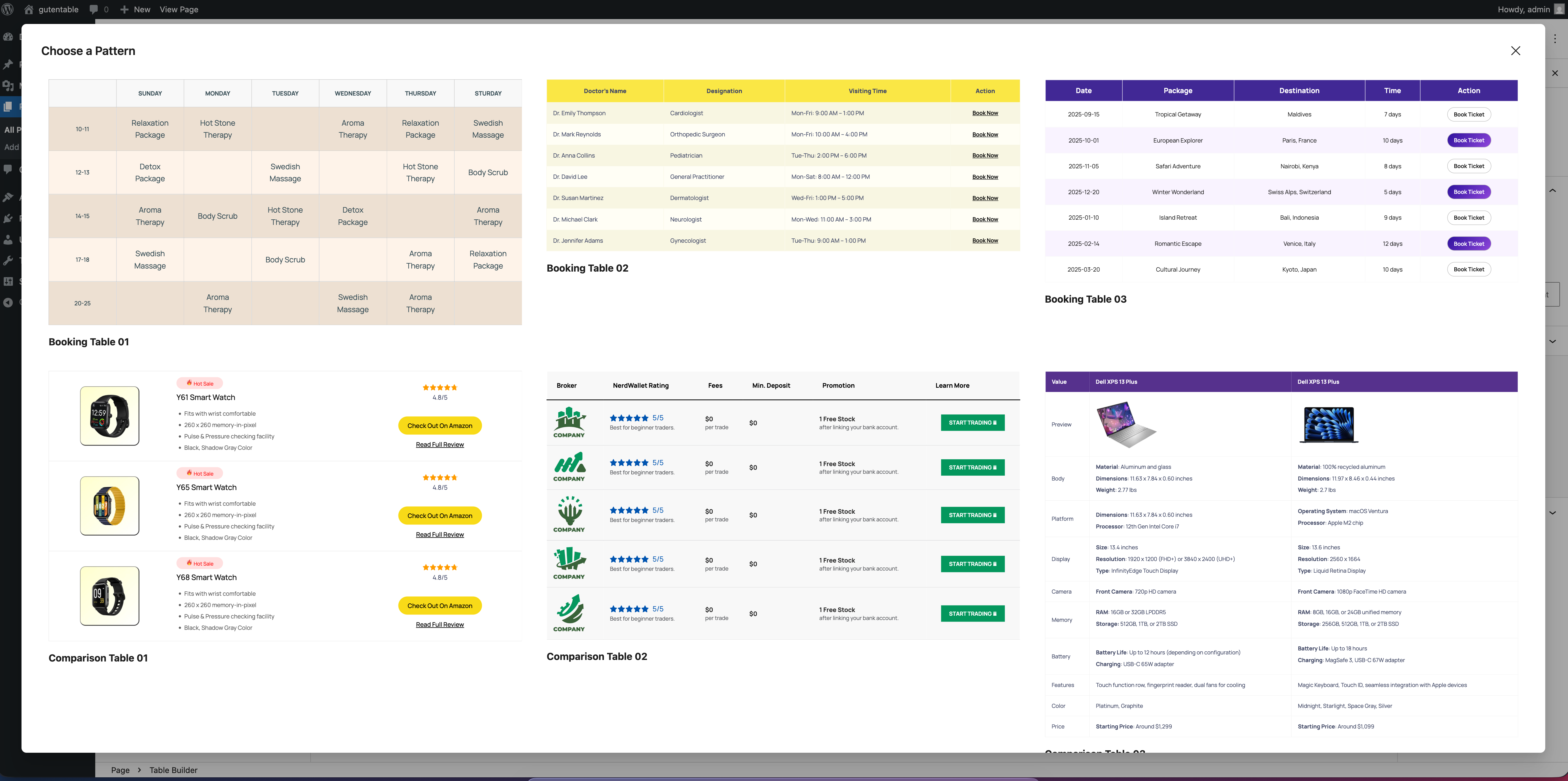
Start fast with 40+ pre-designed table patterns, then customize colors, borders, spacing, and typography visually — no code required.
Already have the data? Import a CSV or Excel file, or paste a Google Sheets link and pull it straight in. Tabilo works out what each column holds, so a column of picture addresses becomes real images and a column of scores becomes star ratings — not a wall of text. And if the data keeps changing, switch on live sync and the published table refreshes itself in the background.
Why choose Tabilo?
- Any content, any cell – insert any block into table cells for unlimited layouts.
- Made for the block editor – a true native block, not an iframe or shortcode.
- Beginner friendly – build a table visually with columns, rows, header and footer toggles.
- Bring your own data – import a spreadsheet or a Google Sheet, and keep the table in sync with it.
- Designer ready – fine-grained control over colors, borders, radius, padding and spacing.
- Lightweight & fast – no jQuery, no bloat, clean semantic HTML output.
- Translation ready – fully internationalized and RTL friendly.
Key Features
- Flexible content – add any Gutenberg block (text, images, buttons, icons, ratings…) inside cells.
- Visual table builder – set columns and rows, then edit directly in the editor.
- Import from CSV & Excel – drop in a spreadsheet and the table is built for you, with a preview first.
- Import from a web address – paste a Google Sheets link or a direct link to a .csv, .tsv or .xlsx file and fetch the data straight into a table.
- Live sync – keep a table connected to its source and let it refresh itself hourly, every six hours or daily, so published tables stay current without re-importing.
- Smart columns – a column of picture addresses becomes real images, a column of links becomes clickable links, and a column of scores becomes star ratings. Detected for you, and changeable per column before you import.
- Header & footer sections – optional table header and footer with independent styling.
- Sticky header – keep column names visible while visitors scroll long tables, with a top offset control.
- Fixed or auto layout – switch between fixed-width and content-based column sizing.
- Responsive tables – horizontal-scroll mode with an optional scroll hint, or Stacked Card mode that turns each row into a labelled card on small screens.
- Per-column colors – give any header or footer column its own text and background color.
- Block styles – Default, Striped, and Separated styles out of the box.
- Full styling controls – table, row, cell, header and footer colors, backgrounds, per-side borders, border radius, padding, border spacing and font sizes.
- 40+ ready-made patterns – pricing, comparison, data and booking table designs to start in one click.
- Bonus native blocks – a Star Rating block and an SVG Icon block (icon library + custom SVG) to enrich your tables.
- Own block category – all Tabilo blocks are grouped under a dedicated “Tabilo” category in the inserter.
Included Blocks
- Table Builder – the core flexible table block.
- Table Row & Table Cell – structural blocks with their own color and border controls.
- Star Rating – display ratings with an optional numeric value.
- Icon – insert SVGs from the built-in library or paste your own custom SVG.
Ready-Made Table Patterns
Kickstart your layout with professionally designed patterns:
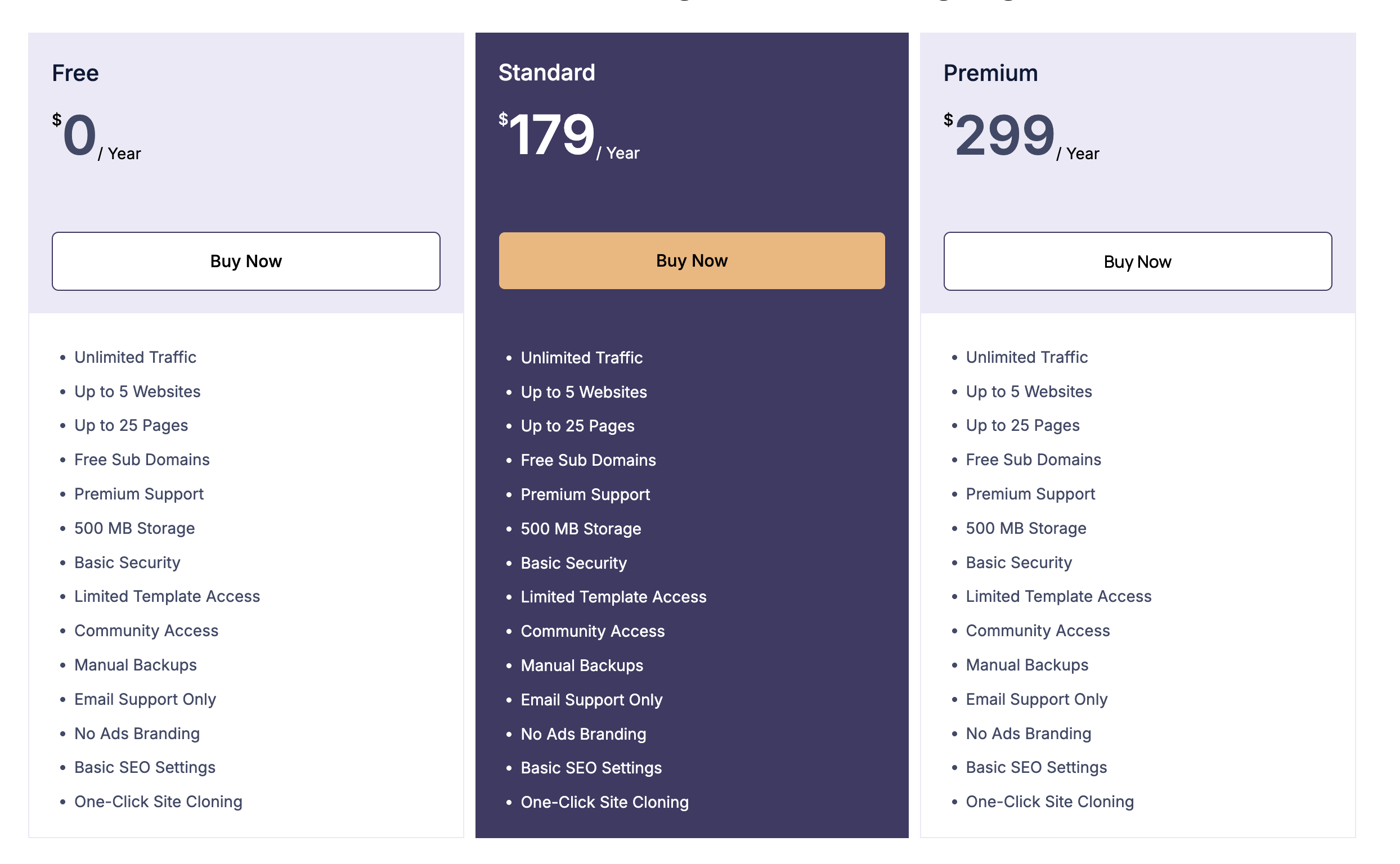
- Pricing tables – 19 designs for plans, subscriptions and hosting.
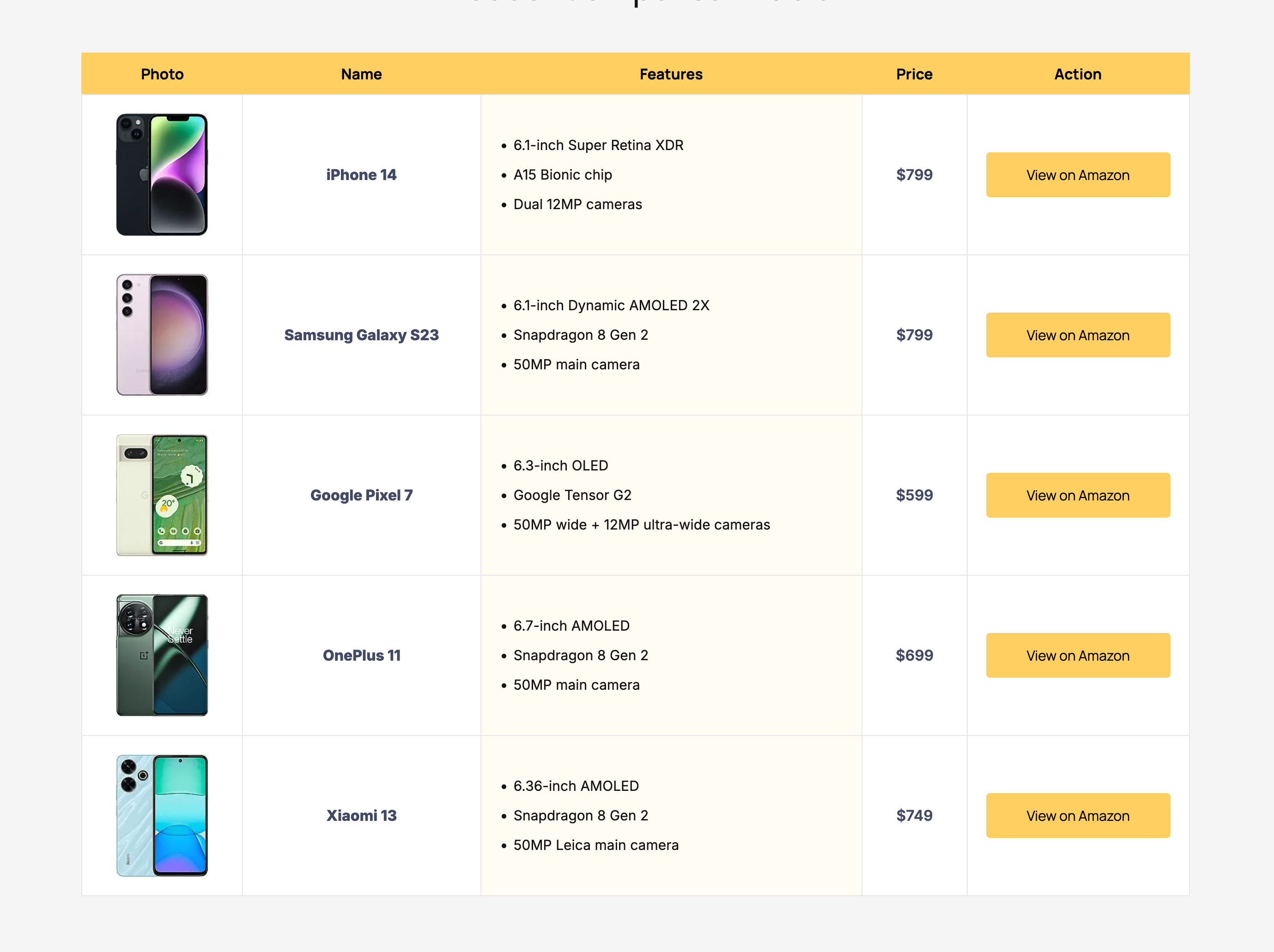
- Comparison tables – 14 designs for products, phones, laptops and features.
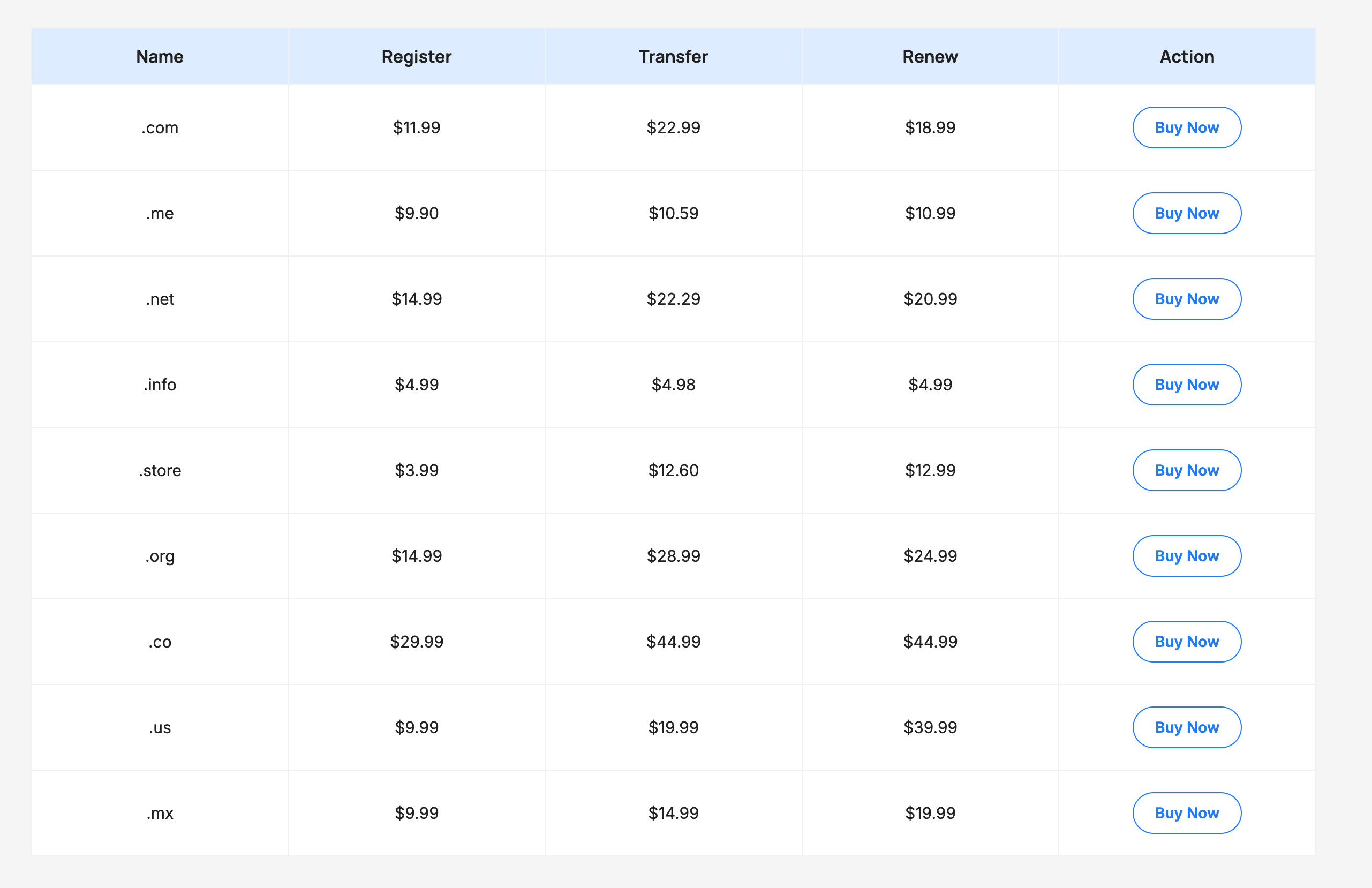
- Data tables – 7 designs for sports standings, food menus, listings and more.
- Booking tables – 3 designs for schedules and reservations.
Perfect For
- Pricing and subscription tables
- Product and feature comparison tables
- Specification and data tables
- Pros and cons tables
- Booking, schedule and menu tables
- Product catalogues built from a spreadsheet, pictures and all
- Stock levels, price lists and any data that changes on its own
- Any content that needs a clean, structured, tabular layout
External services
Tabilo can build a table from a spreadsheet at a web address you paste in. When you do that, and only then, your site makes a request from your own server to the address you entered and shows you the data it returns. Nothing is sent to the plugin author at any point, and no information about you, your site or your visitors is transmitted.
Google Sheets
When the address you paste is a Google Sheets link, the plugin rewrites it into Google’s own CSV export address on docs.google.com and requests that instead. This happens only when you paste a Google Sheets link and press Fetch Data, or when a table you have set to live sync refreshes itself.
What is sent: the sheet address you pasted, and nothing else.
This service is provided by Google. Terms of service: https://policies.google.com/terms — Privacy policy: https://policies.google.com/privacy
Other addresses
For any other address, the plugin requests exactly the address you entered — nothing is rewritten.
Live sync
If you switch a table to live sync, your site repeats that same request on the schedule you choose (hourly, every six hours, or daily) using WordPress’s built-in scheduler. The request is made in the background: your visitors never wait for it, and a page view never triggers an outbound request of its own. You can turn sync off or disconnect the source at any time from the block’s Data Source panel.
Picture addresses inside your data
When an imported column holds picture addresses, your site makes one short request per column to ask the host what kind of file it serves, so the column can be recognised as images. If you switch on Copy pictures into the media library, your site then downloads those pictures and stores them as attachments. Left off — the default — the pictures are simply displayed from wherever they already live, and your visitors’ browsers load them from that host.
Limits
Requests are restricted to http and https addresses, to two megabytes per data file and five megabytes per picture, and to addresses outside your own private network. Fetched data is only read and displayed; it is never executed, and nothing is written to your server unless you explicitly ask for pictures to be copied into the media library.
Screenshots


Blocks
This plugin provides 5 blocks.
- Rating Shows star rating with number of ratings.
- Icon Shows SVG icon from library or custom SVG code.
- Table Builder Build flexible table with any content.
- Table Row Table Row block for Tabilo.
- Table Cell Table Cell block for Tabilo.
Installation
From your WordPress Dashboard:
- Go to Plugins Add New.
- Search for “Tabilo”.
- Click Install Now, then Activate.
Manual installation:
- Download the plugin ZIP file.
- Upload it via Plugins Add New Upload Plugin.
- Activate the plugin.
How to use:
- Create or edit a post or page.
- Click the “+” inserter and search for “Table Builder” (or open the Tabilo category).
- Choose a pre-designed pattern, select Start blank to build your own, click Import Data to build the table from a CSV or Excel file, or click External Source to build it from a Google Sheet or a file on the web.
- Add columns, rows, a header/footer, then style it from the block sidebar.
FAQ
-
What is Tabilo?
-
Tabilo is a native table builder block for the WordPress block editor (Gutenberg) that lets you create responsive pricing, comparison and data tables without shortcodes or a page builder.
-
Can I add any type of content to table cells?
-
Yes. Tabilo lets you insert any Gutenberg block inside a cell — text, images, buttons, lists, icons, star ratings and even other blocks.
-
Do I need to know how to code?
-
No. Everything is built and styled visually from the block editor. No HTML, CSS or shortcodes are required.
-
Can I import a spreadsheet?
-
Yes. Click Import Data on the block’s start screen and drop in a CSV or Excel file (.csv, .tsv, .xlsx, .xlsm). You will see a preview of the data, choose whether the first row is the header and the last row is the footer, and then the table is built for you. A file you upload is read entirely in your browser — it is never sent to your site or anywhere else.
-
Can I build a table from a Google Sheet or a file on the web?
-
Yes. Click External Source on the block’s start screen, paste the address, and press Fetch Data. Google Sheets links and direct links to
.csv,.tsvand.xlsxfiles all work, and you get the same preview and header/footer options as an uploaded file. Because browsers cannot read those addresses directly, your own server fetches the data — see the External services section above for exactly what is sent. -
Does the Google Sheet have to be public?
-
Yes. The sheet must be shared with Anyone with the link, or published to the web via File Share Publish to web. A private sheet returns a sign-in page rather than data, and Tabilo will tell you so. If you cannot share the sheet, download it as CSV and use Import Data instead.
-
Can a table update itself when the source changes?
-
Yes. When you import from an address, set Keep in sync to Live and choose how often it should refresh. WordPress re-reads the source in the background on that schedule, so your visitors never wait for it. If the source is unreachable the table keeps showing the last data that was read successfully — it never goes blank. Cell content is then managed by the source and locked in the editor; your layout, colours and styling stay fully editable. Use Disconnect in the Data Source panel to turn a synced table back into an ordinary one, keeping the rows as they are.
Every column type follows the source on every refresh — text, images, links and star ratings alike.
-
My spreadsheet has a column of image URLs. Will they become real images?
-
Yes. Tabilo works out what each column holds and turns a column of picture addresses into proper image blocks rather than printing the address as text. It recognises them from the column name, the file extension, and — for the many picture addresses that have no extension at all, such as Unsplash or Cloudinary links — by asking the server what the file actually is. Every column’s type is shown above the preview and you can change any of them before importing.
By default the pictures load from where they already live, which is instant and means a synced table follows its source. Switch on Copy pictures into the media library if you would rather store copies on your own site.
-
Can other columns become blocks too?
-
Yes. A column of web addresses becomes clickable links, and a column of scores from 0 to 5 becomes Star Rating blocks. As with images, the guess is shown before you import and you can override it per column.
-
Are the tables responsive?
-
Yes. Choose Horizontal Scroll to keep the table intact with an optional on-screen scroll hint, or Stacked Card to turn each row into a card below 768px — every cell is labelled with its column header, and you control how the cells and their labels are arranged. More responsive modes are on the roadmap.
-
Can I customize the table design?
-
Absolutely. You get comprehensive controls for colors, backgrounds, per-side borders, border radius, padding, border spacing and font sizes, plus Default, Striped and Separated block styles. Header and footer columns can also be colored one by one — handy for highlighting a recommended pricing plan.
-
Does Tabilo include ready-made templates?
-
Yes. It ships with 40+ pre-designed patterns for pricing, comparison, data and booking tables that you can insert and edit in one click.
-
Will it work with my theme?
-
Tabilo follows WordPress block standards and works with any properly coded block or classic theme that supports the block editor.
-
Does it slow down my site?
-
No. Tabilo is lightweight, loads no jQuery, and outputs clean semantic HTML, so your tables stay fast.
Reviews
There are no reviews for this plugin.
Contributors & Developers
“Tabilo – Table Builder Block” is open source software. The following people have contributed to this plugin.
Contributors
Translate “Tabilo – Table Builder Block” into your language.
Interested in development?
Browse the code, check out the SVN repository, or subscribe to the development log by RSS.
Changelog
1.3.0
- New: Redesigned Tabilo dashboard – Settings Tabilo is now five tabs instead of one page: Overview, Patterns, Blocks, Import data and Settings.
- New: Patterns tab – every bundled pattern, grouped by category. Pick one and it opens the block editor with the pattern picker already filtered to it.
- New: Blocks tab – what each of the five blocks does, whether it registered correctly, and which block styles it ships with.
- New: Import data tab – a Connected sources panel lists every table that’s linked to a spreadsheet, with its sync mode (manual or live), when it was last fetched, and whether the last refresh failed.
- New: Settings tab – set the default refresh interval for new live-synced tables, choose whether imported pictures are copied into the media library by default, and opt in to clearing Tabilo’s cached data and settings when the plugin is deleted. Includes on-demand buttons to clear the cache or rescan your content for tables.
- New: “New table”, “Upload a file” and “Link a Sheet” on the dashboard now open a new page with the Table Builder block already inserted and the right picker open, instead of a blank editor.
- New: External Source – a new button on the block’s start screen opens the import window on a From URL tab. Paste a Google Sheets link or a direct link to a
.csv,.tsvor.xlsxfile, press Fetch Data, and review the same preview you get for an uploaded file. - New: Google Sheets support – ordinary share links and published-to-web links both work, and the tab you were looking at is the tab that gets imported. The sheet must be shared publicly or published to the web.
- New: Live sync – keep a table connected to its source and let it refresh itself hourly, every six hours or daily. Refreshes run in the background on WordPress’s scheduler, so a page view never waits on the source, and the last good data keeps showing if the source is unreachable.
- New: Data Source panel – see the connected address and when it was last read, change the sync mode or interval, refresh on demand, or disconnect and keep the rows as ordinary editable content.
- New: Smart columns – imported columns are no longer all plain text. A column of picture addresses becomes real image blocks, a column of links becomes clickable links, and a column of scores becomes Star Rating blocks. Every column’s type is shown above the import preview and can be changed before you import.
- New: Picture detection that works on modern addresses – many image links carry no file extension (Unsplash, Cloudinary, Gravatar and similar). Tabilo asks the host what the file actually is rather than guessing from the address, so those columns are recognised too.
- New: Copy pictures into the media library – an optional step at import time. Left off, pictures load from where they already live, which keeps a synced table following its source.
- Improvement: Tables in your content now shows each table’s real state – Live sync on, Imported data or Static table – and how many tables are on a single page, not just that one is.
- Improvement: every column type now follows the source on a scheduled refresh, star ratings included — the stars are redrawn on the server from the same artwork the editor uses.
- Fix: importing from a URL now defaults Keep in sync to Manual — refresh when I ask instead of Off — import once, so a pasted link is kept and shows up in Connected sources. Previously the address was discarded the moment the table was built unless you changed the dropdown yourself.
- Note: this version makes outgoing requests to addresses you supply. See the External services section of this readme for exactly what is sent and when.
1.2.0
- New: Import Data – a new button on the block’s start screen opens an import window. Drag in a CSV or Excel file (or pick one from your computer) and the table is built from it — no copying and pasting cell by cell.
- New: CSV import – quoted fields, commas and line breaks inside values, and files saved by Excel or Numbers all read correctly. The separator (comma, semicolon, tab or pipe) is detected for you and can be changed by hand.
- New: Excel import – reads
.xlsxand.xlsmworkbooks, including dates, shared text and multi-sheet files. Pick which sheet to import from a dropdown. - New: Import preview – see the first rows before anything is created, and choose whether the first row becomes the table header and the last row the footer.
- New: Redesigned Tabilo dashboard – Settings Tabilo now shows a getting-started tour, quick-start steps, the blocks you can use, the settings worth knowing, and a list of the posts and pages that already contain a table.
- Fix: adding or deleting a column no longer clears the text you typed in the header and footer cells.
1.1.0
- New: Stacked Card responsive mode – below 768px each row becomes a card, with the header text repeated as a label on every cell. Choose a Row Direction (cells stacked vertically or side by side) and a Cell Direction (label beside the value or above it).
- New: Sticky header – keep the header row in view while visitors scroll a long table, with an optional top offset for themes with a fixed admin or site header.
- New: Per-column header and footer colors – the Table Head and Table Footer panels now list one collapsible group per column, each with its own text and background color.
- New: Settings Tabilo admin page – plugin info, a quick-start guide, recommendations and links to demos, tutorials and support.
- Improvement: clearer labelling in the block sidebar for the responsive and color controls.
1.0.0
- Initial release.